Connect PayPal V2 in a few minutes.
PayPal V1 keys are deprecated. Create one app in PayPal, paste two keys into your panel, and PayPal payments keep working.
Do this if you accept PayPal payments
PayPal V1 is deprecated, so your panel has to use V2 keys to keep taking PayPal payments. It is a one-time change. Not sure whether you have done it already? Open Company → Payment: if the two PayPal V2 fields (PayPal Client Id and PayPal Client Secret) are filled in and the mode is Live Mode, you have most likely switched already.
What you need
Create the app in PayPal
Open Apps & Credentials, in Live
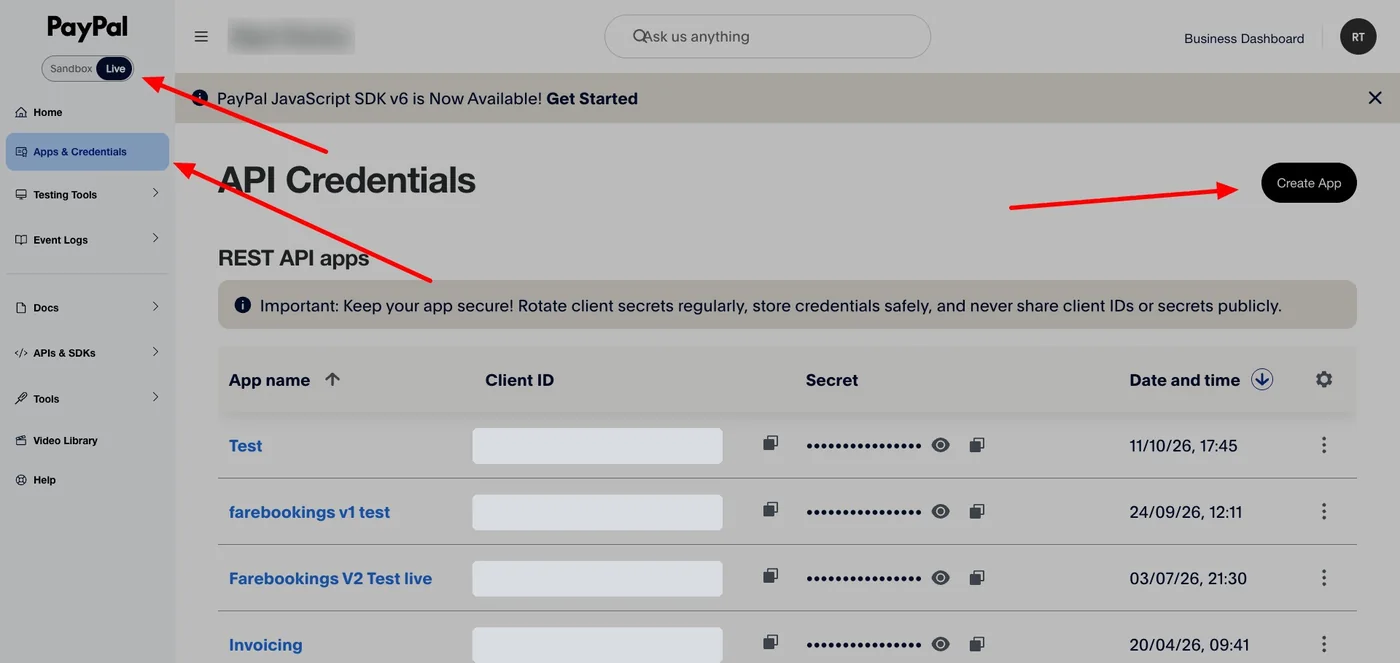
Go to developer.paypal.com and log in with your PayPal Business account. In the left menu choose Apps & Credentials, and make sure the toggle at the top left is on Live. Sandbox is only for tests with fake money — real payments need Live keys.
Create the app
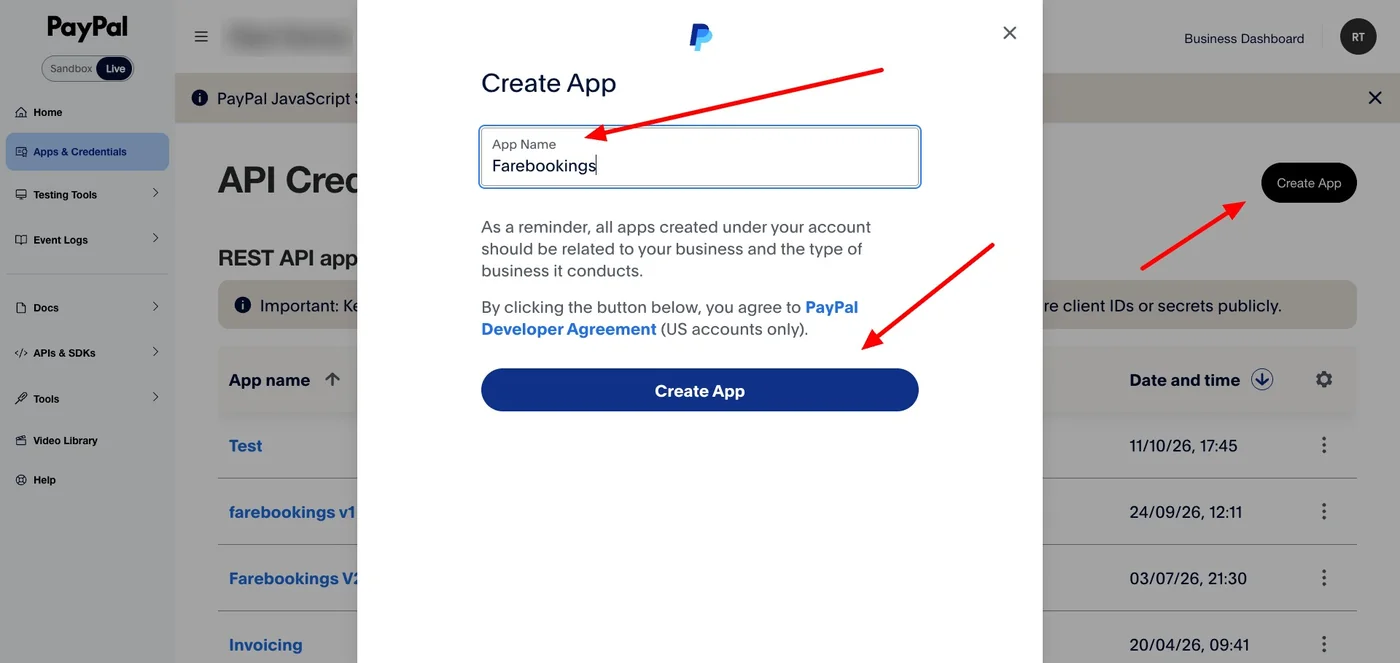
Click Create App, type a name you will recognise (for example Farebookings) and click Create App again.
Copy the Client ID and the Secret
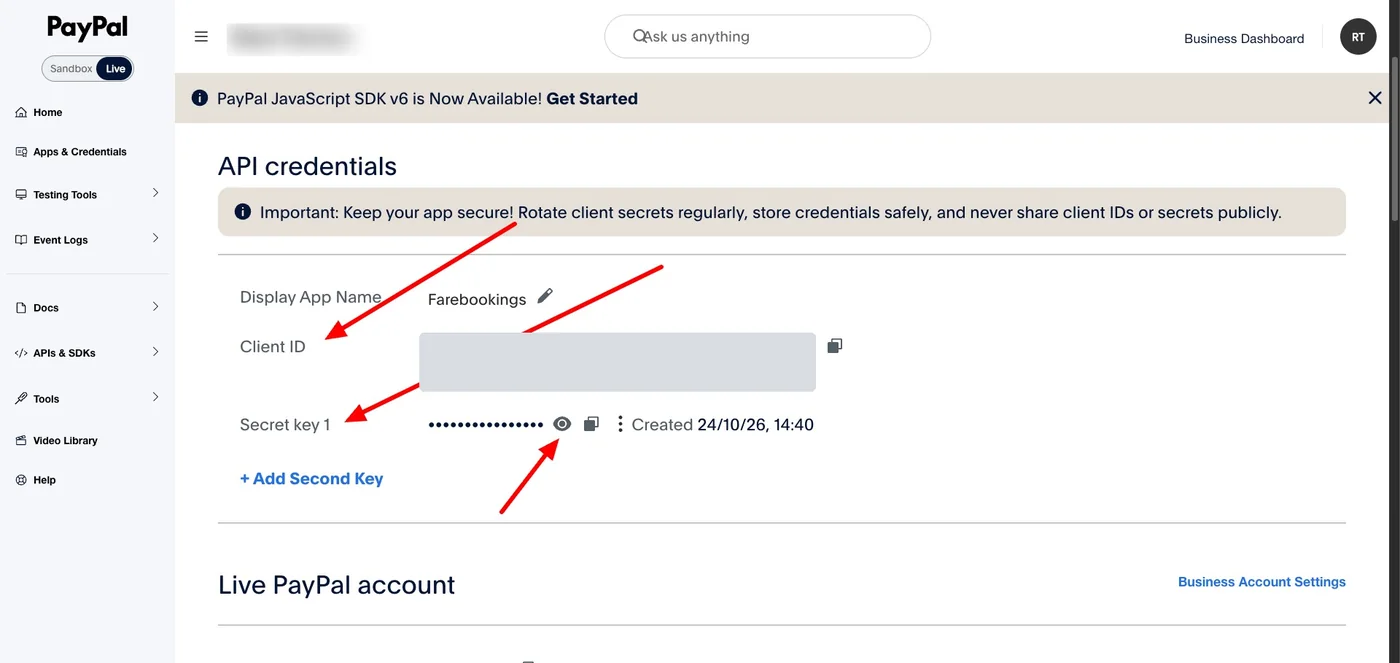
PayPal opens your new app. The Client ID is shown in plain sight; the Secret is under Secret key 1, hidden behind dots. Click the eye icon to reveal it, and use the copy icons to copy each value.
Keep this PayPal tab open — you need both values in the next step.
Paste them into your panel
Fill in the PayPal V2 box
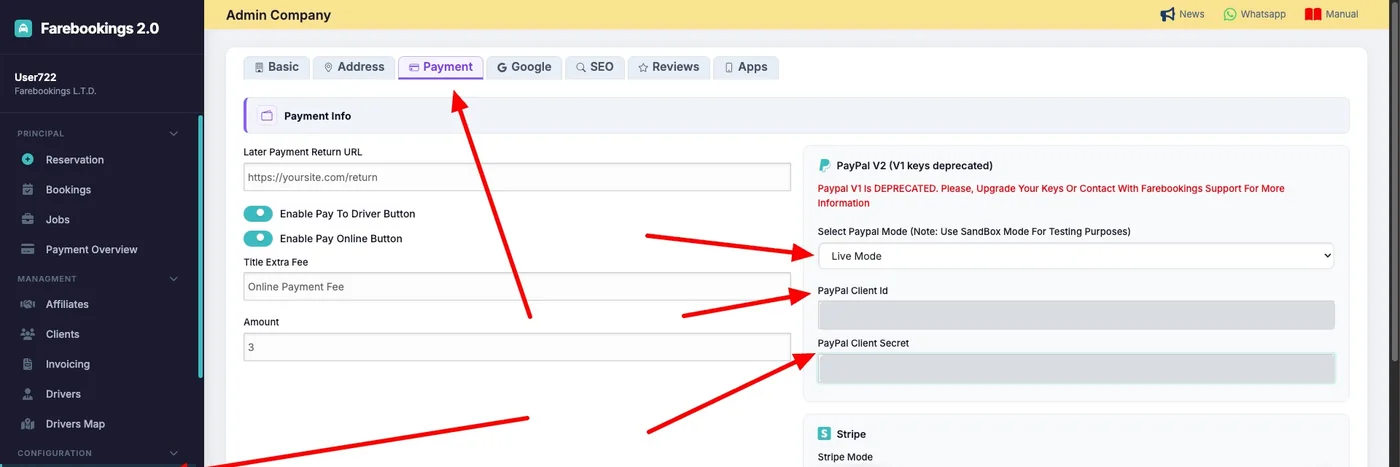
In your FareBookings admin panel go to Configuration → Company and open the Payment tab. In the PayPal V2 box set the mode to Live Mode, paste the Client ID into PayPal Client Id and the Secret into PayPal Client Secret, then save.
Check that it works
Make a booking yourself and pay with PayPal to confirm the payment goes through; you can refund it from your PayPal account afterwards. Then see how it shows up in the Payment Status tab.
Treat these keys like a password
Your Client ID and Secret control how PayPal payments reach you. Don’t send them by email or WhatsApp, and never show them in screenshots or public pages. If one ever leaks, rotate it: in PayPal open the app, click Add Second Key, paste the new Secret into your panel, then delete the old key.
Not working? Check these four things
Need a hand?
Tell us the name of your company and we will check the setup with you.